
Snapchat Ads API Integration in CPV Lab | CPV One
Snapchat Ads (opens new window) is now integrated with CPV Lab and CPV One via API. This lets the tracker automatically pull your Snapchat campaign costs and display them in your dashboard — no manual entry needed.
With accurate cost data from Snapchat Ads, you can track your full campaign performance in one place: clicks, conversions, spend, and ROI.
Below is the step-by-step guide to set up the Snapchat Ads API cost synchronization with CPV Lab | CPV One.
To complete this integration, you'll need:
- An active Snapchat Ads (opens new window) account with at least one running campaign
- A valid CPV Lab (opens new window) or CPV One (opens new window) license
1. Go to API Integrations Page
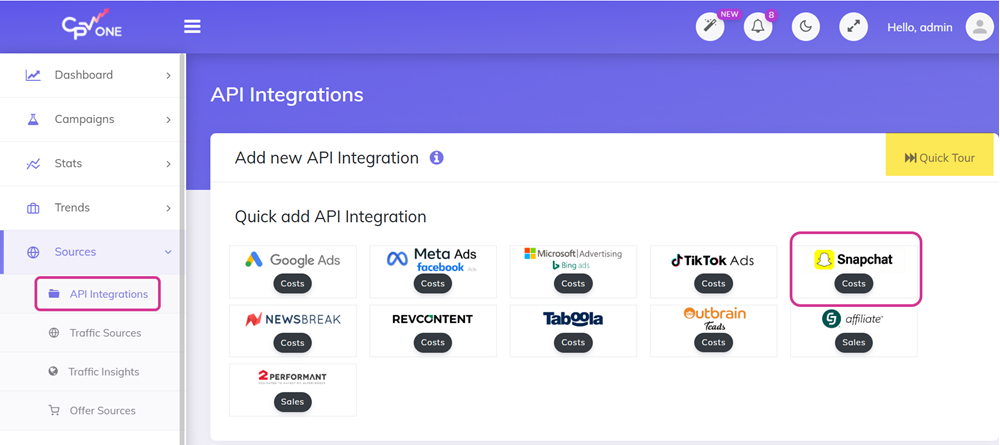
- Go to Sources ➡️ API Integrations from your CPV tracker dashboard.
- Find the Snapchat Ads card on the API Integrations page.
- Click on it to start adding a new integration.
💡 Tip: Before you start, check the Quick Tour in the top-right corner of the API Integrations page. It walks you through how each section works.
2. Snapchat Login and Authorization
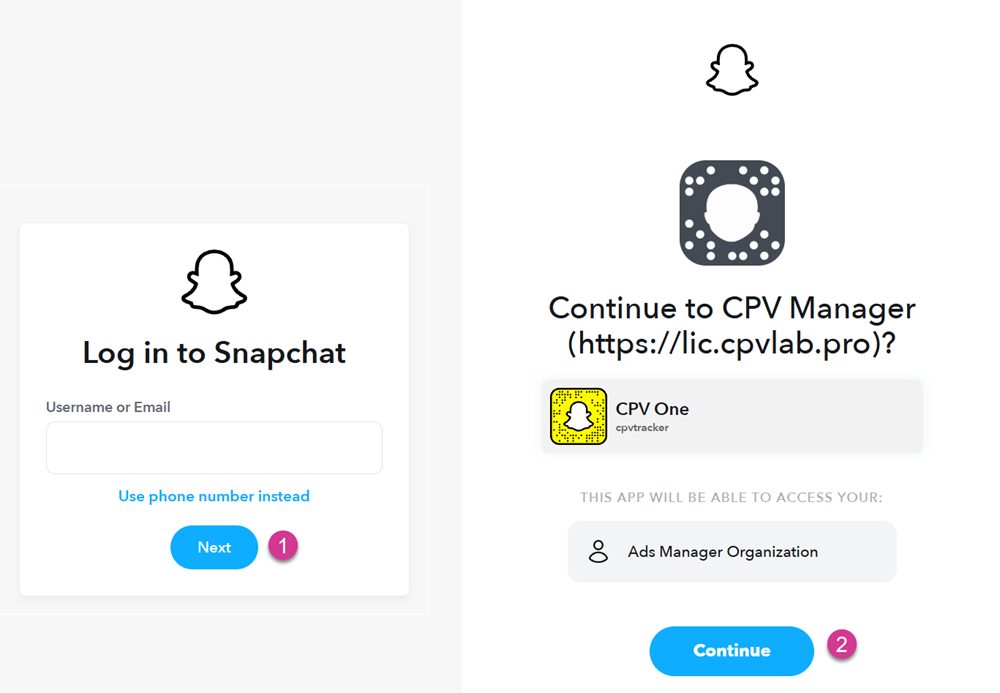
- You will be redirected to the Snapchat login page.
- Enter your Snapchat Ads credentials and log in.
- After login, Snapchat will ask you to authorize CPV Lab to access your ad account data.
- Click Allow to confirm the connection.
⚠️ Note: CPV Lab only reads your cost data. It does not make changes to your Snapchat Ads campaigns.
3. Manage the Integration
After you authorize the connection, you will be taken to the Integration Settings page. Here you can configure how the integration works.
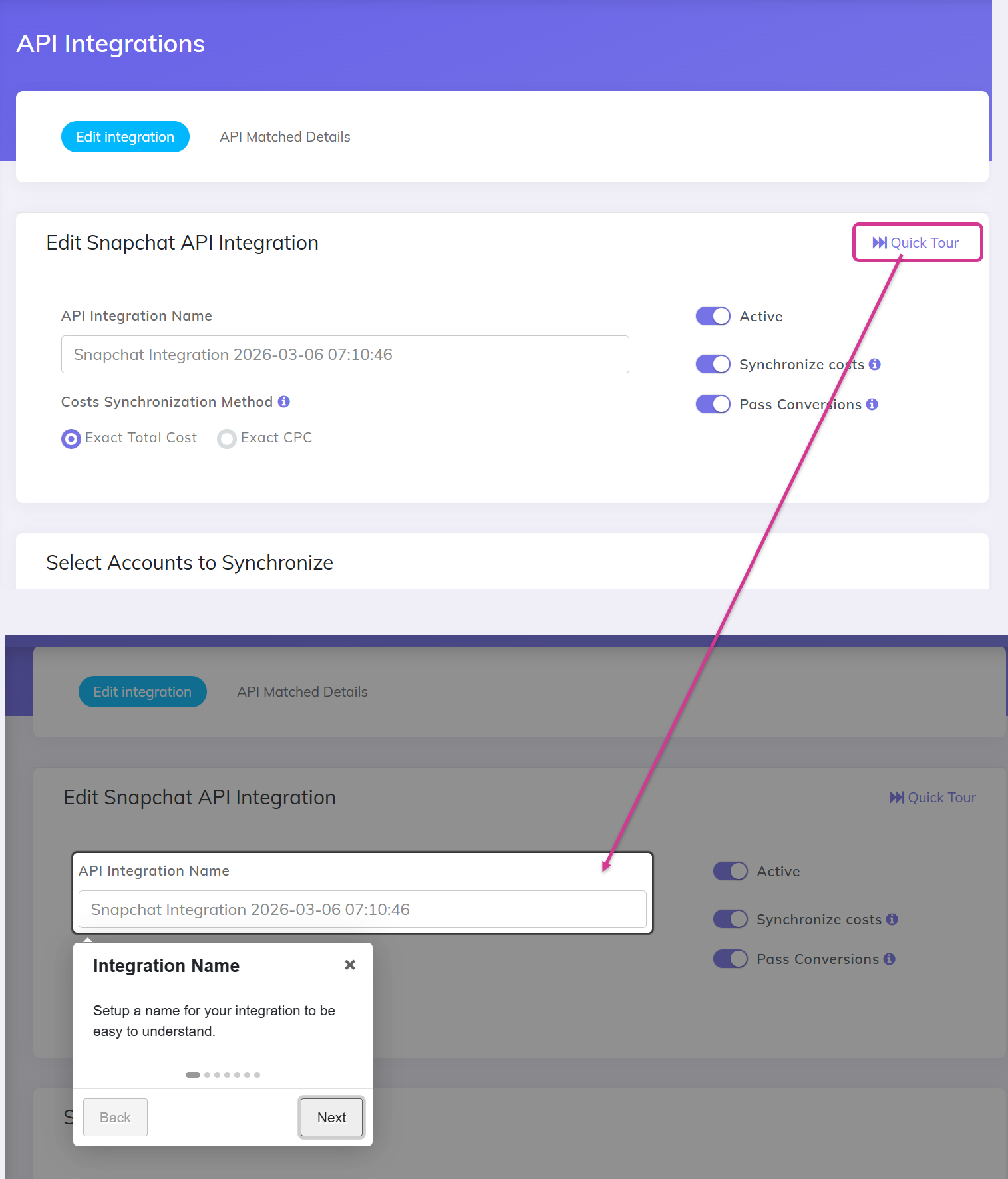
Key settings on this page:
Integration Name — Give this integration a name you will recognize easily. For example: Snapchat - Brand Campaigns.
Active status — Shows whether this API connection is currently active.
Cost Synchronization Method — Choose how costs from Snapchat Ads are applied in CPV Lab:
- Exact Total Cost — Pulls the exact total spend from Snapchat Ads and distributes it across all tracked visitors for that campaign. Use this if you want your total spend to match Snapchat exactly.
- Exact CPC — Pulls the exact CPC value for each ad. Use this if accurate per-click cost is more important than matching total spend.
💡 Which method should I use? Use Exact Total Cost if you want your CPV Lab spend totals to match your Snapchat Ads billing. Use Exact CPC if you want the most accurate cost per visitor in your reports.
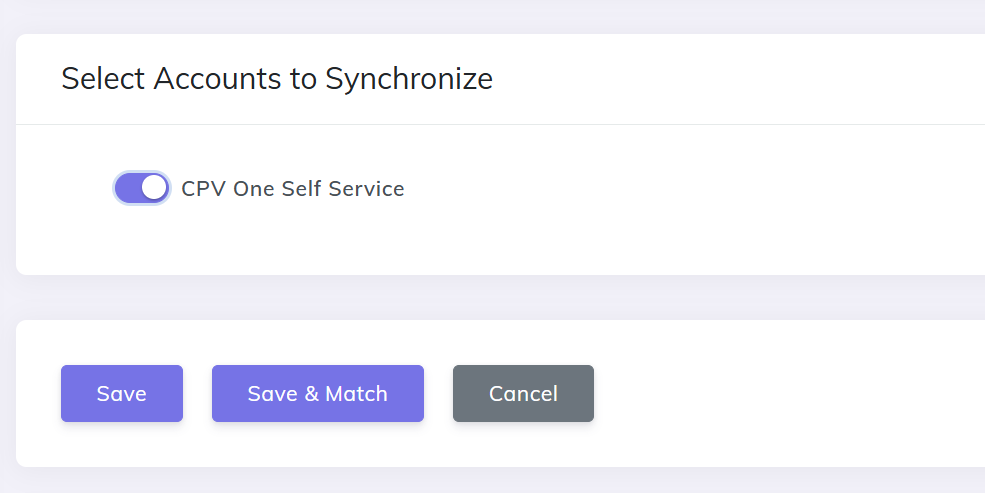
Accounts to Synchronize
- You will see a list of all Snapchat Ads accounts connected under your login.
- Select the accounts you want to synchronize campaign costs for.
- Click Save to apply your selection and finish later.
- Or click Save & Match to go directly to the Campaign Matching step.
4. Match Campaigns
CPV Lab needs to know which Snapchat Ads campaign matches which campaign in your tracker. You do this on the Match screen.
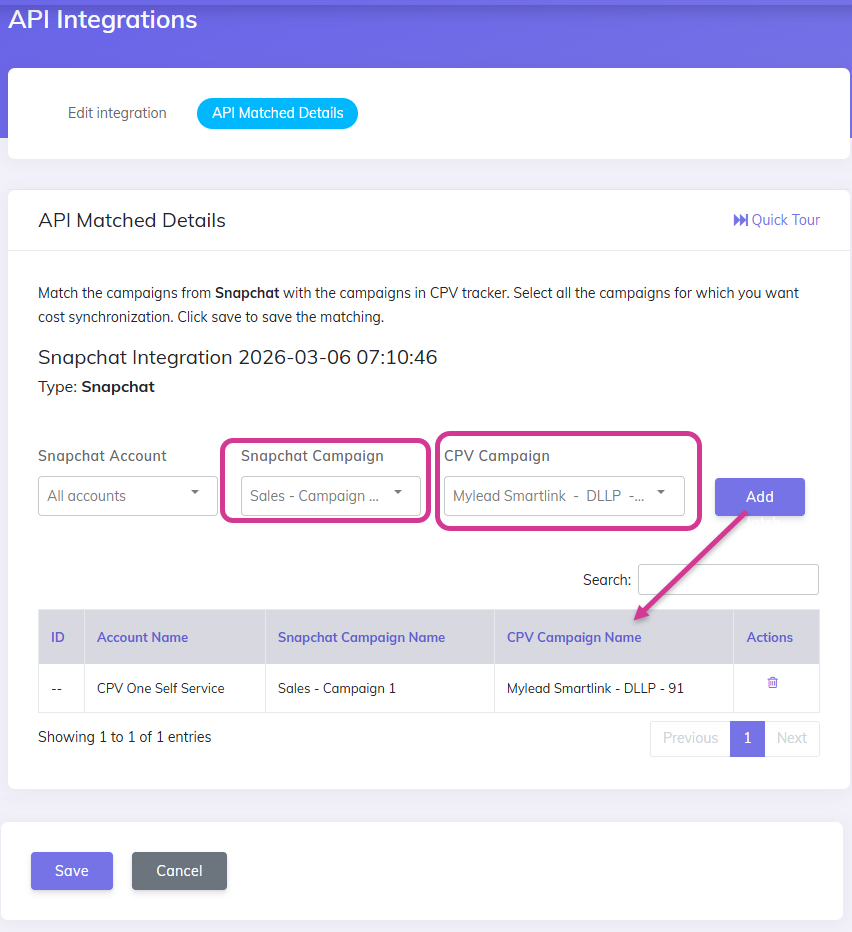
How to match campaigns:
- Select a campaign from Snapchat Ads using the left dropdown.
- Select the matching campaign in CPV Lab | CPV One using the right dropdown.
- Click the Match button.
- A new record will appear in the table below.
- Repeat for each campaign you want to synchronize.
- Click Save Matchings when done.
To remove a match:
- Click the Delete icon in the Actions column next to the match you want to remove.
⚠️ Important: Costs are synchronized based on the campaign matches you set here. Make sure each Snapchat campaign is matched to the correct campaign in CPV Lab. Incorrect matches will show wrong cost data in your reports.
5. Integration Status
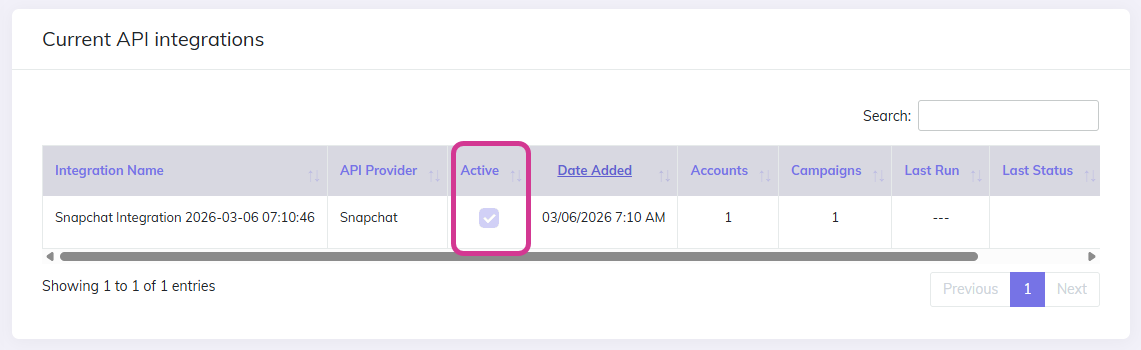
- By default, the integration is set to Active and configured to Synchronize Costs from Snapchat Ads.
- Leave this enabled to keep your cost data up to date automatically.
7. Setup Cron Job (CPV Lab users only)
This step is only required for CPV Lab (self-hosted). CPV One users can skip this — the synchronization runs automatically.
Because CPV Lab runs on your own server, you need to set up a Cron job to trigger the API sync automatically.
Cron job settings:
- Frequency: Once per hour
- Command:
cd /home/<server-name>/public_html/; php cron-api-integrations.php
Once the Cron job is active, CPV Lab will automatically pull Snapchat Ads cost data every hour.
Tracking Snapchat Costs in CPV Lab | CPV One
After the integration is set up and campaigns are matched:
- Run traffic to your Snapchat Ads campaign as normal.
- Cost data will update automatically in your CPV Lab reports.
- You may see a delay of up to 24 hours before costs appear for the first time after setup. After that, costs update regularly without any manual action.
Additional Notes
Number of Matched Campaigns
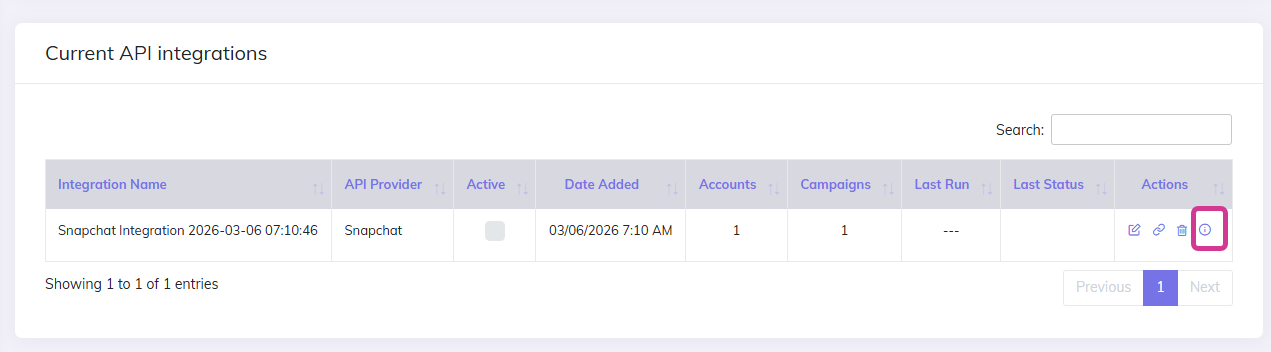
- You can check how many campaigns are matched and how many cost syncs have run.
- Go to Sources ➡️ API Integrations and click the Details button next to your Snapchat integration.
Pass Conversions to Snapchat Ads
Syncing costs is one part of the Snapchat integration. To send conversion data back to Snapchat Ads, you need to use the CAPI method. → (coming soon)
You may also find useful: